
You can host more than one website on your hosting account, or add an extra domain name that shows the same website as your main one, for example a .com version of your .co.uk.
Check your plan first
Each hosting plan is designed for a certain number of websites, so depending on your plan, you may need to upgrade to add a new website. See How to upgrade or downgrade your hosting plan, and ask us if you have any questions.
Adding a domain
- Log in to cPanel. See How to log in to cPanel if you're not sure how.
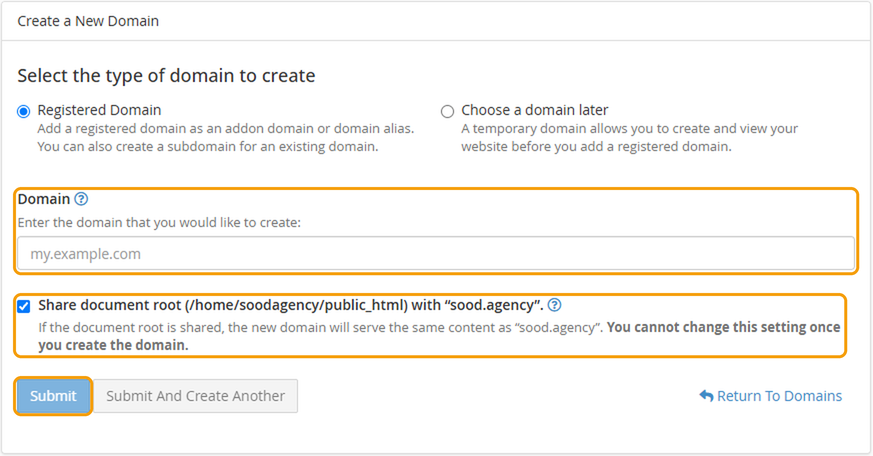
- Under Domains, click Domains, then click Create A New Domain.
- Enter the domain name, for example yourotherdomain.co.uk.
- Decide whether to tick Share document root:
- Leave it ticked if the new domain should show the same website as your main domain.
- Untick it if the new domain is for a separate website. cPanel will create a new folder for it.
- Click Submit.
After adding the domain
- Point the domain to us. If the domain is registered somewhere else, its nameservers need to point to ns1.barrukohost.com and ns2.barrukohost.com. See How to change your domain's nameservers. This can take up to 24 hours to work everywhere.
- Add your website. If it's a separate website, you can install WordPress using WordPress Manager by Softaculous in cPanel, or upload your files to the new folder using File Manager.
- Check the SSL certificate. A free certificate is added automatically once the domain points to us. See How to check your SSL certificate.
If you'd like a subdomain instead, such as shop.yourdomain.co.uk, see How to add a subdomain in cPanel. If you're not sure which you need, raise a ticket and we'll set it up for you.


