
Each email account has a storage limit. When a mailbox is full, new emails can't be delivered, and people emailing you may get a message saying your mailbox is over quota. You can fix this by clearing out old emails or giving the mailbox more space.
Checking how full your mailbox is
- Log in to cPanel. See How to log in to cPanel if you're not sure how.
- Under Email, click Email Accounts.
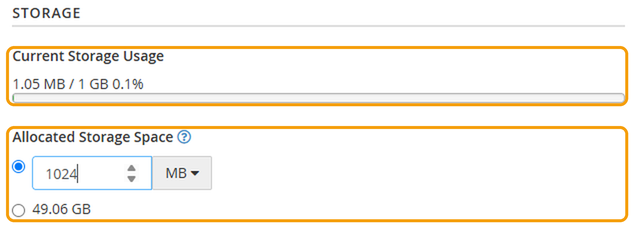
- Find the email address. The storage bar shows how much space is used and how much is allocated.
Giving the mailbox more space
- Click Manage next to the email address.
- Under Allocated Storage Space, enter a larger amount. The second option sets the mailbox to the most space your hosting allows.
- Click Update Email Settings at the bottom of the page.
Email storage comes out of your hosting's total disk space, so giving every mailbox lots of space can fill your hosting up. See How to check and manage your disk space.
Clearing out old emails
- Delete emails you don't need, especially ones with large attachments.
- Empty your Trash and Spam folders. Deleted emails still take up space until these are emptied.
- If you use an email app that keeps copies of your sent emails, check your Sent folder too.
You can do this in your email app, or in webmail. See How to log in to webmail.
If you're still running out of space, get in touch and we'll help you find what's taking it up.


