
Our servers check incoming email for spam. You can choose what happens to it, and set up your own filters to sort or block particular emails.
Spam filters
- Log in to cPanel. See How to log in to cPanel if you're not sure how.
- Under Email, click Spam Filters.
- Make sure Process New Emails and Mark them as Spam is switched on.
- Switch on Move New Spam to a Separate Folder (Spam Box). Spam will then go to a separate folder in your mailbox instead of your inbox.
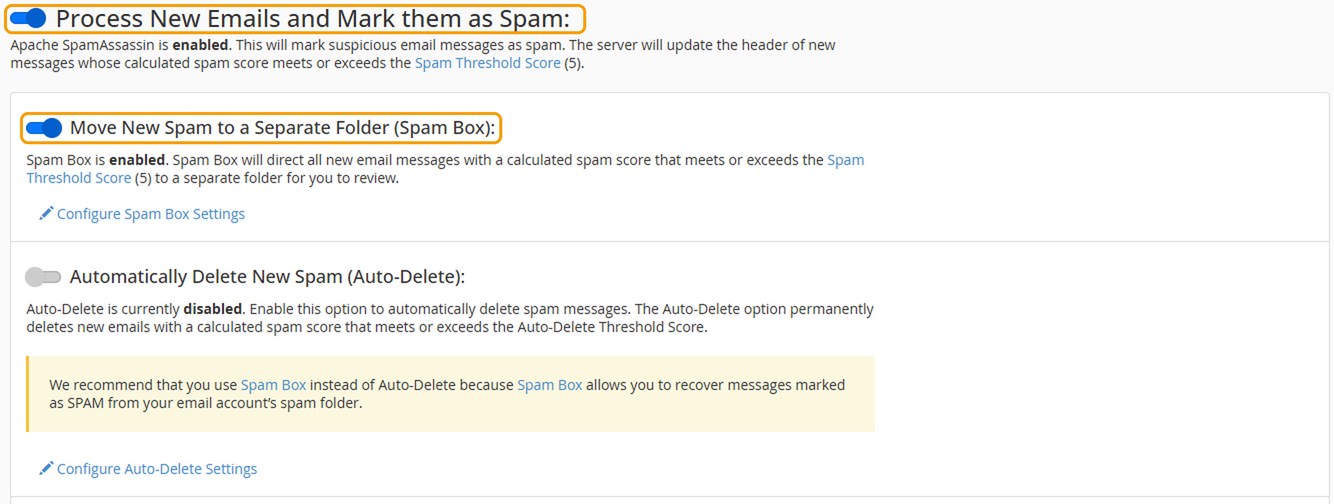
We don't recommend switching on Automatically Delete New Spam. Genuine emails are sometimes marked as spam by mistake, and with Spam Box you can still find them.
If emails from someone you know keep going to spam, or spam from one sender keeps getting through, click Show Additional Configurations. You can add addresses there that should always or never be treated as spam.
Email filters
Filters let you sort emails automatically, for example moving everything from one sender to a folder, or deleting emails with a certain word in the subject.
- In cPanel, under Email, click Email Filters.
- Click Manage Filters next to the email address you want to filter, then Create a New Filter. To create a filter for every address on your account, use Global Email Filters instead.
- Give the filter a name.
- Under Rules, choose what to look for, for example From and contains, and enter the email address or word to match.
- Under Actions, choose what should happen, for example Deliver to Folder or Discard Message.
- Click Create.
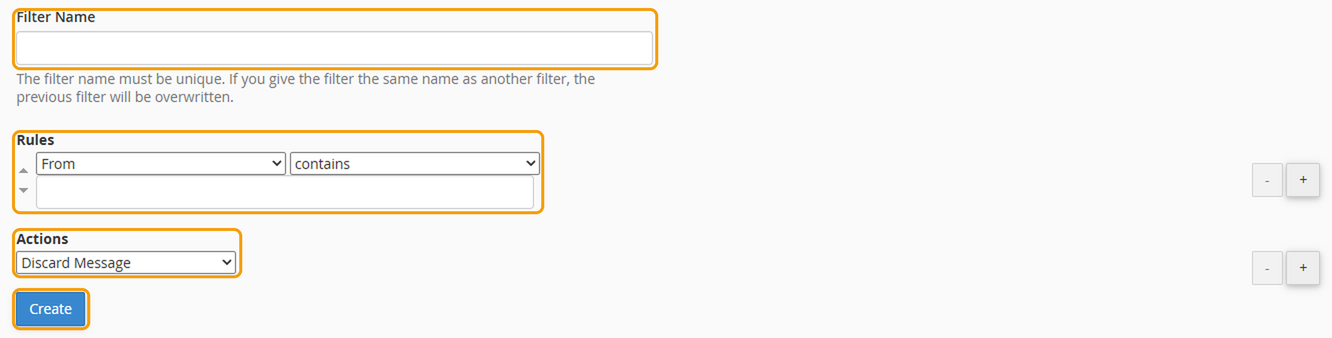
Be careful with Discard Message, as discarded emails are deleted and can't be recovered.
See also Why are my emails going to spam?, for emails you send that end up in other people's spam folders.


