
A redirect sends visitors from one address to another. For example, you might want an old page to go to its new location, or a second domain to go to your main website.
If your website runs on WordPress and you only want to redirect individual pages, a redirect plugin or your SEO plugin is usually easier to manage. The steps below work for any website.
Adding a redirect
- Log in to cPanel. See How to log in to cPanel if you're not sure how.
- Under Domains, click Redirects.
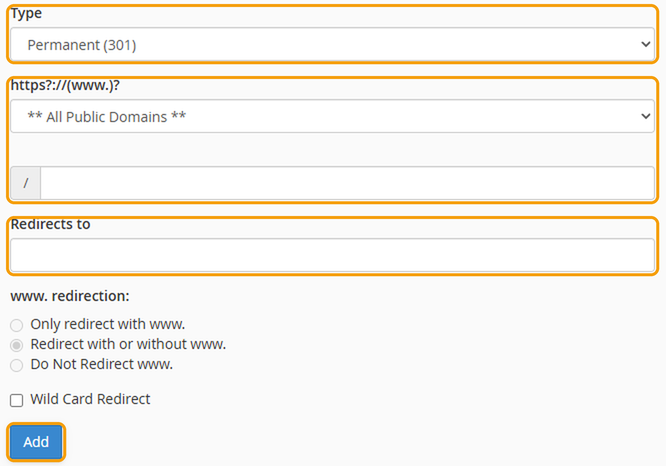
- Under Type, choose:
- Permanent (301) if the page or website has moved for good. This is the right choice in most cases, and it tells Google to update its search results.
- Temporary (302) if it's only for a short time.
- Choose the domain to redirect from the list. If you only want to redirect one page, enter the rest of its address in the box underneath, for example old-page.
- Under Redirects to, enter the full address visitors should go to, including https://.
- Under www. redirection, leave Redirect with or without www. selected.
- Click Add.
Open the old address in a private window to check it goes to the right place.
Removing a redirect
Your redirects are listed under Current Redirects at the bottom of the same page. Click Delete next to the one you want to remove.
Good to know
- Don't redirect a domain to itself, or to a page that redirects back, as this creates a loop and the page won't load.
- Browsers remember permanent redirects, so if you change or remove one, clear your browser cache before checking it.


