
You can keep your website with us and use Google Workspace or Microsoft 365 for your email instead of our mailboxes. To do this, your domain's email settings need to point to Google or Microsoft.
Before you start: once you switch, emails will stop arriving in your mailboxes with us. If you want to keep your old emails, move them across to Google or Microsoft first, or raise a ticket and we can help. We can also make all of these changes for you.
1. Update your MX records
Google or Microsoft will give you the MX records to use when you set up your account. Add these in cPanel's Zone Editor, and delete the existing MX record that points to your own domain. See How to manage your domain's DNS records.
If your domain's DNS is managed somewhere else, such as Cloudflare, make the change there instead.
2. Change your email routing
- In cPanel, under Email, click Email Routing.
- Choose your domain from the list.
- Select Remote Mail Exchanger and click Change.
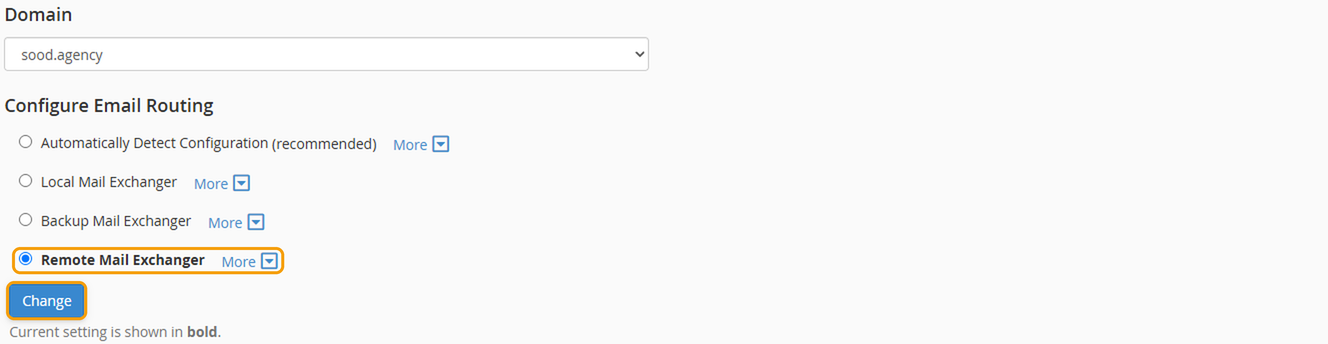
This tells our server that your email is handled elsewhere. Without it, emails sent from your website, such as contact form messages, may not reach your new mailboxes.
3. Add the email security settings
Google and Microsoft will also give you SPF and DKIM records to add, so your emails don't go to spam. See Why are my emails going to spam?.
Good to know
- Changes can take up to 24 hours to work everywhere, so some emails may still arrive in your old mailbox during that time.
- Once everything is working, you can delete your old mailboxes in cPanel to free up space.


