
An FTP account lets you, or someone you trust such as a developer, upload and download files using an app like FileZilla. You can limit each FTP account to one folder, so you don't have to share your cPanel login.
Creating an FTP account
- Log in to cPanel. See How to log in to cPanel if you're not sure how.
- Under Files, click FTP Accounts.
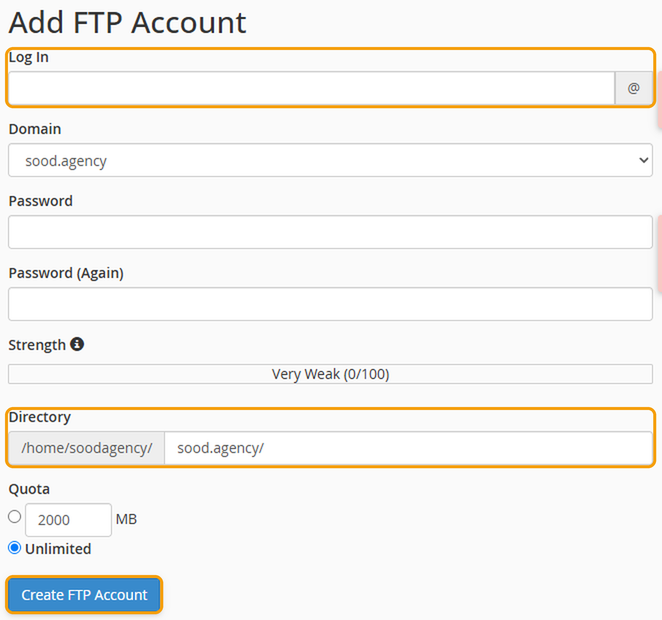
- Under Log In, enter a username, and choose the domain from the list.
- Enter a strong password, or click Password Generator to create one.
- Under Directory, choose the folder this account can access. Your main website is in public_html. Check this carefully, as cPanel fills it in automatically.
- Leave Quota as Unlimited unless you want to limit how much they can upload.
- Click Create FTP Account.
Connecting
In your FTP app, use these details:
- Host: your domain name, for example yourdomain.co.uk
- Username: the full username, including the @ and domain, for example [email protected]
- Password: the password you set
- Port: 21, with explicit FTP over TLS if your app gives you the option, so your connection is encrypted
SFTP is switched off by default. See How to connect to your hosting with SSH or SFTP if you need it.
Good to know
- Once someone has finished working on your website, delete their FTP account from the list at the bottom of the FTP Accounts page.
- Uploading or deleting the wrong files can break your website, so it's a good idea to take a backup first.


