
PHP is the programming language WordPress and many other websites run on. Keeping it up to date makes your website faster and more secure. You may also need to change it if a plugin or theme asks for a newer version.
Before you start: changing the PHP version can stop an older website from working. It's a good idea to take a backup first. If you're on a maintenance plan, we keep your PHP version up to date for you, so you don't need to do this yourself.
Changing your PHP version
- Log in to cPanel. See How to log in to cPanel if you're not sure how.
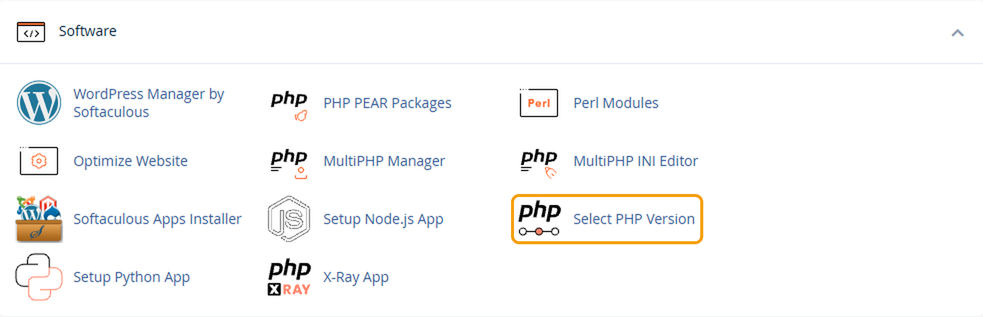
- Under Software, click Select PHP Version.
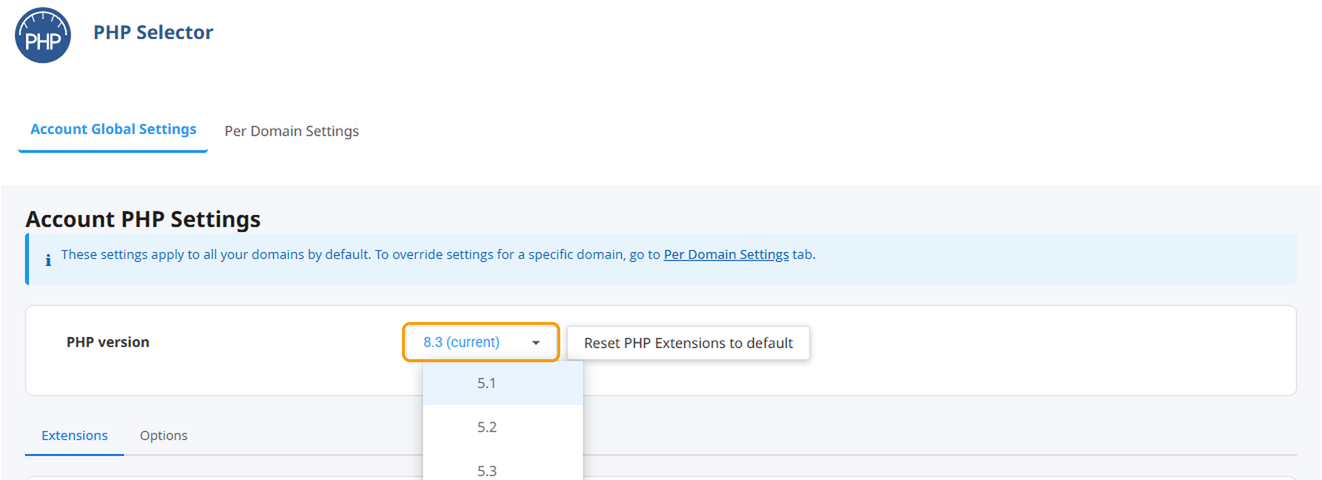
- Next to PHP version, choose the version you need from the dropdown. The change is saved straight away.
- Open your website in a new tab and check it's working properly, including any forms or shop pages.
This changes the version for every website on your hosting account. To change it for one website only, open the Per Domain Settings tab instead.
If something goes wrong
If your website shows an error after the change, go back to Select PHP Version and choose the version you had before. Your website should start working again straight away. Then get in touch and we'll help you find out what needs updating.
Which version should I use?
Use the newest version your website works with. Versions older than 8.2 no longer get security updates, so if you're on one of these, it's worth updating. If you're not sure, ask us and we'll check for you.


