
If emails you send from your domain are landing in people's spam folders, it's often because some settings on your domain are missing or wrong. These settings, called SPF, DKIM and DMARC, prove to other email providers that your emails really come from you.
Checking your domain
- Log in to cPanel. See How to log in to cPanel if you're not sure how.
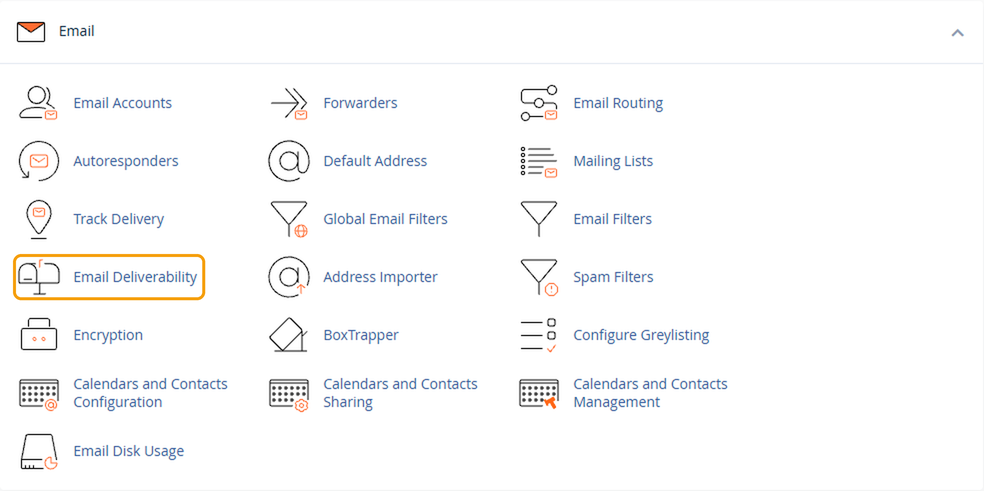
- Under Email, click Email Deliverability.
- Find the domain you send email from and check its status.
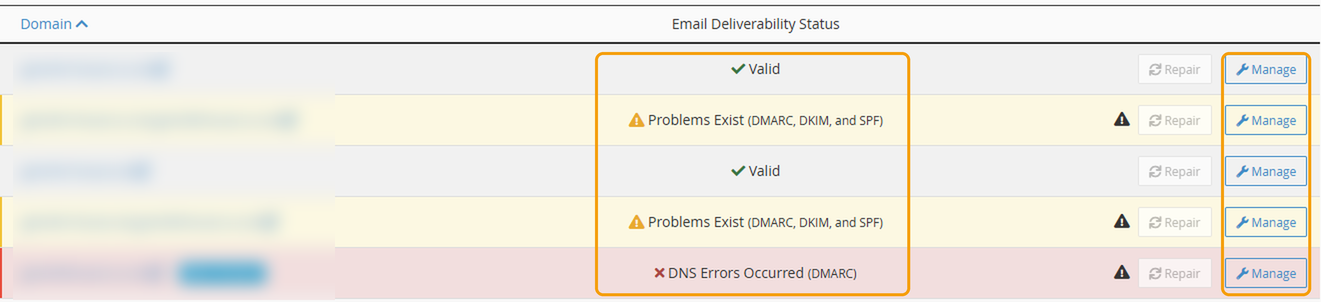
- Valid means the settings are correct.
- Problems Exist or DNS Errors Occurred means one or more settings need fixing. The items in brackets, such as DMARC, DKIM or SPF, show which ones.
You may also see entries that combine two domain names, such as yourdomain.co.uk.yourotherdomain.co.uk. These are created automatically by cPanel and aren't used for email, so you can ignore them.
Fixing problems
If your domain shows a problem, raise a ticket and tell us which domain it is. We'll update the settings for you.
If your domain's DNS is managed somewhere else, such as Cloudflare or your domain registrar, the settings need adding there. We can tell you exactly what to add.
Other reasons emails go to spam
- Your email looks like spam. Lots of links, large images with little text, or words like "free" and "urgent" in the subject can all count against it.
- You're sending to a large list. Sending newsletters or bulk emails from your normal mailbox can affect how your other emails are treated. Use a mailing service such as Mailchimp or Brevo instead.
- Your website's forms send from your address. Contact form emails sent from WordPress can be marked as spam. We can set up your forms to send more reliably.
If your emails are still going to spam after the settings are fixed, get in touch and include an example of an email that was affected.


