
You can download a copy of your website's files and databases from cPanel at any time. It's a good idea to do this before making big changes to your site.
Before you start
- All of our hosting plans include daily backups that we manage for you. If something goes wrong, open a ticket and we can restore your site from one of those.
- The steps below are for taking your own copy, for example before updating plugins or making changes to files.
Downloading a backup
- Log in to cPanel. See How to log in to cPanel if you're not sure how.
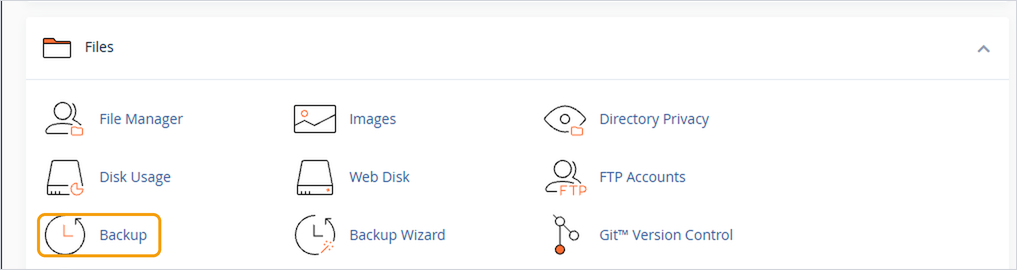
- Under Files, click Backup.
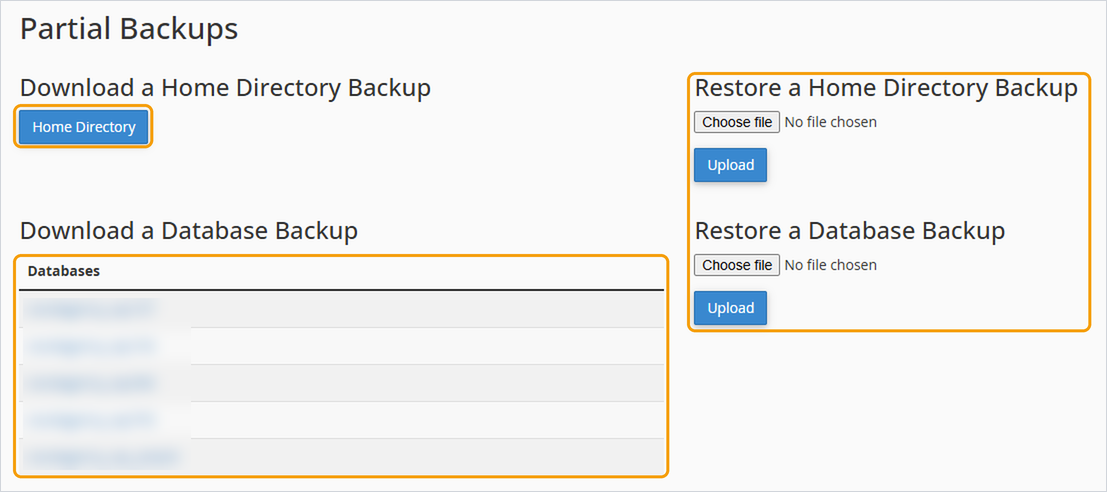
- Choose what you'd like to download:
- Home Directory: all your website files.
- MySQL Databases: your website's content and settings. WordPress sites store posts, pages and settings here, so download this too.
- Email Forwarders and Filters: your email settings, if you use them.
- Click the item you want and it will start downloading. Large sites can take a few minutes.
Keep your downloaded files somewhere safe, such as your computer or cloud storage.
Restoring from a backup
You can restore your own home directory or database backups from the same Backup page, using the upload buttons under Restore. Restoring overwrites what's currently there, so only do this if you're confident it's the right copy.
If you'd rather we did it, or you need a full account restored, open a ticket and tell us which date you'd like to go back to.
Good to know
- A full account backup can't be restored through cPanel, but we can do it for you.
- Backups count towards your disk space while they're being created. If your account is nearly full, download the home directory and databases separately instead.


