
File Manager lets you view, upload and edit the files that make up your website, directly in your browser. You'll find it in cPanel.
Before you start
- Changing or deleting the wrong file can take your website offline. If you're not sure what a file does, leave it alone or open a ticket and ask us first.
- If you're on one of our maintenance plans, we can make changes for you.
Opening File Manager
- Log in to cPanel. See How to log in to cPanel if you're not sure how.
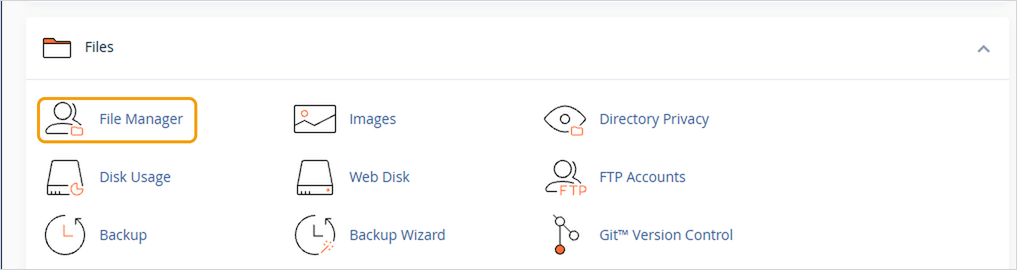
- Under Files, click File Manager. It opens in a new tab.
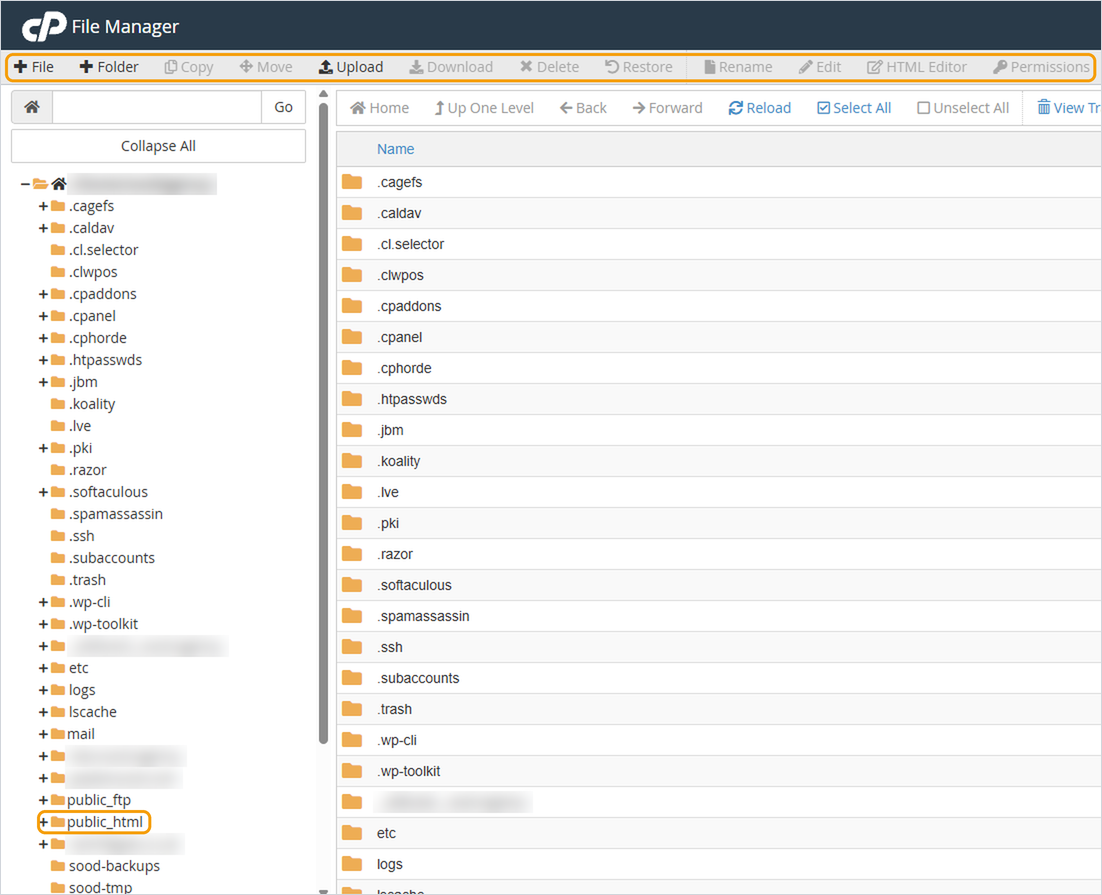
- Your website's files are in the public_html folder. Double-click it to open it.
Common tasks
- Upload a file: open the folder you want, click Upload in the toolbar and choose the file.
- Download a file: select it and click Download.
- Edit a file: select it and click Edit. Make a copy first so you can go back if something breaks.
- Delete a file: select it and click Delete. Deleted files go to the Trash, so you can restore them if needed.
Good to know
- Only change files inside public_html. Files outside it control your account and email, and editing them can cause problems.
- If your site runs on WordPress, most changes are safer made from the WordPress dashboard rather than by editing files.
- Take a backup before making bigger changes. See How to back up and restore your website.


