
If your card has expired or you'd like to use a different one, you can update your payment details yourself in the client area. We'll never ask you to send card details by email or in a support ticket.
Before you start
You'll need to be logged in to your client area and have your new card to hand. If you can't log in, see How to log in to your client area.
Adding a new card
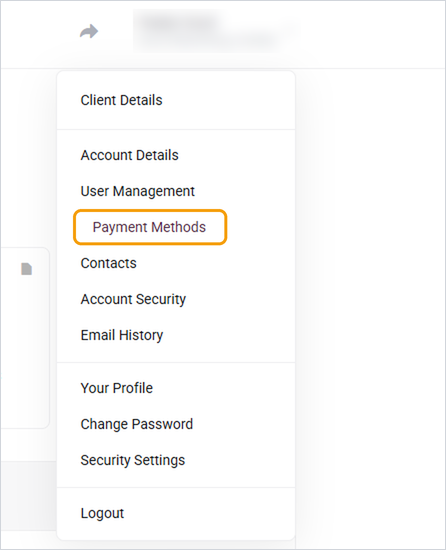
- Click your name in the top right and choose Payment Methods. You can also find it under Billing in the footer.
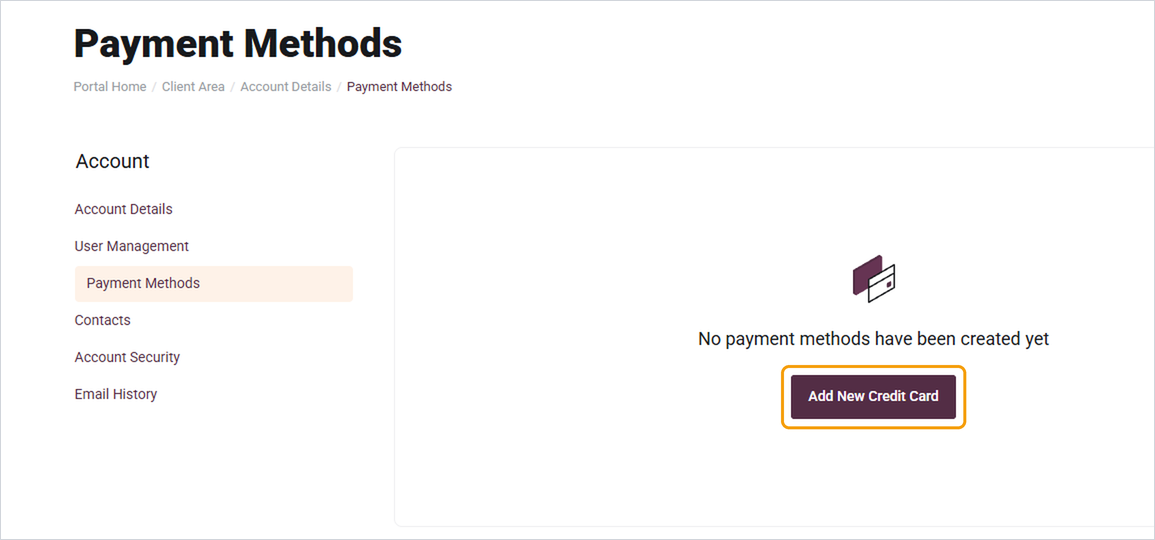
- Click Add New Credit Card.
- Enter your card details and billing address, then save.
Choosing which card is used
If you have more than one card saved, only your default card is used for automatic payments. To change it, click Set as Default next to the card you want to use.
Removing an old card
Once your new card is added and set as default, delete the old one so it isn't used by mistake.
Good to know
- Your billing address should match the one your card issuer has on file, otherwise the payment may be declined.
- Card details are processed securely by our payment provider. Nobody at Barruko can see your full card number.
- If you get an email or ticket asking you to send card details, don't reply with them. Let us know instead.
Need help?
If your card keeps being declined, open a ticket with the last four digits of the card, any error message you saw, and whether the card works elsewhere. Never include the full card number.


