
A forwarder sends a copy of every email that arrives at one address to another address. For example, you could forward [email protected] to your personal inbox, so you don't have to check two places.
Before you start
- The address you're forwarding from doesn't need to be a full email account. You can create a forwarder on its own.
- Forwarding to free email services such as Gmail or Outlook.com can sometimes cause messages to land in spam. If that happens, consider setting up the mailbox on your phone or computer instead.
Setting up a forwarder
- Log in to cPanel. See How to log in to cPanel if you're not sure how.
- Under Email, click Forwarders.
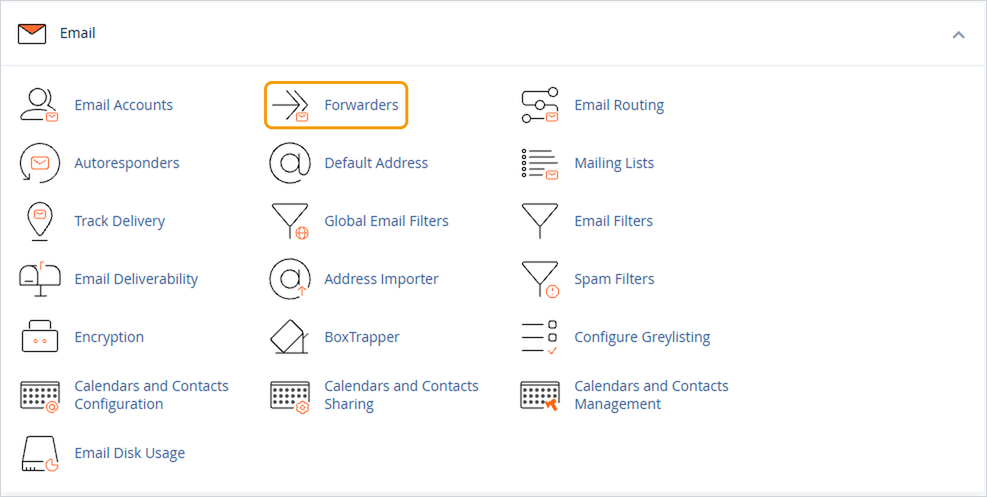
- Click Add Forwarder.
- In Address to Forward, enter the part before the @ and choose the domain.
- Choose Forward to Email Address and enter the address the emails should go to.
- Click Add Forwarder.
Forwarding starts straight away. Send a test email to check it's working.
Removing a forwarder
Go back to Forwarders in cPanel and click Delete next to the forwarder you no longer need.
Good to know
- If the original address is also a full email account, emails will arrive in both inboxes.
- You can forward one address to several others by adding a forwarder for each.


