
Each email account has its own password. You can change it in cPanel, for example if you've forgotten it or think someone else may know it.
Before you start
Once you change the password, any phone, computer or app using that email will stop receiving mail until you update the password there too.
Changing an email password
- Log in to cPanel. See How to log in to cPanel if you're not sure how.
- Under Email, click Email Accounts.
- Find the email address and click Manage next to it.
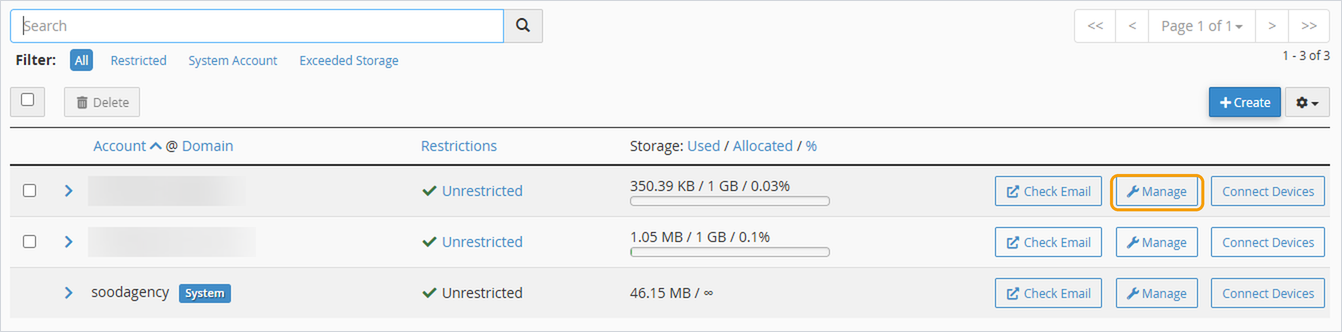
- Under Security, enter a new password, or click Generate to create a strong one.
- Scroll down and click Update Email Settings.
Then update the password in your email app on each of your devices. Most apps will ask for the new password the next time they check for mail.
Good to know
- If you can log in to webmail, you can also change your password there. Go to Password & Security on the webmail home page.
- Changing your email password doesn't change your cPanel or client area password.
- If you don't have access to cPanel, ask whoever manages your hosting to change it, or open a ticket.


