
Each hosting plan comes with a set amount of disk space for your website files, databases and email. If you run out, your website may stop updating and emails may bounce, so it's worth checking now and again.
Checking how much space you're using
- Log in to your client area and go to My Services.
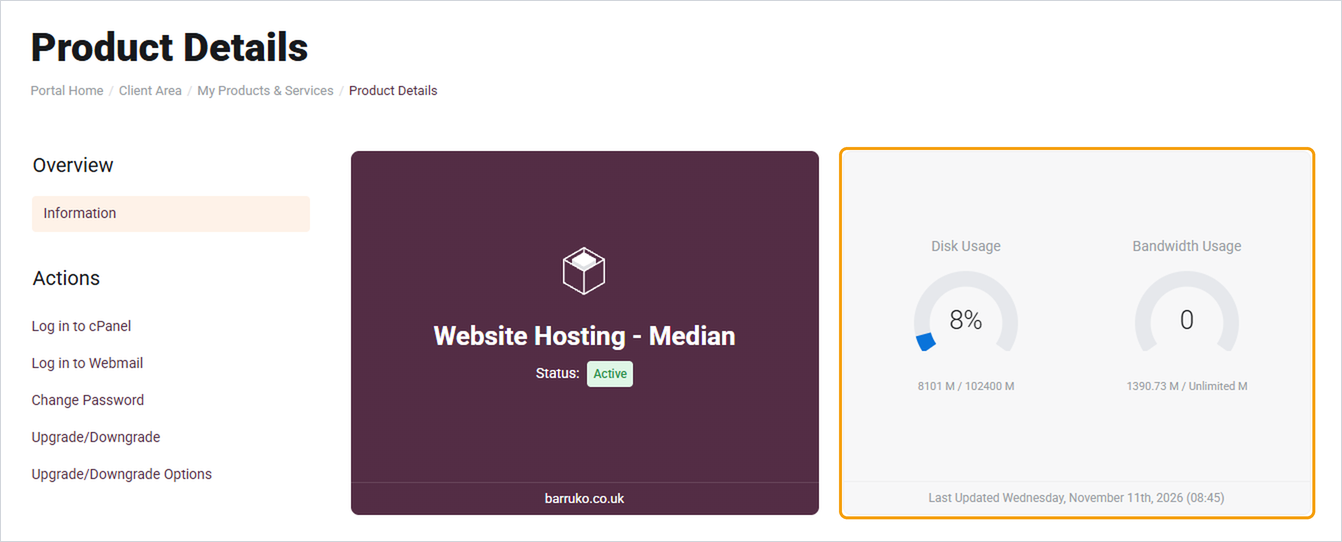
- Click your hosting service. Your disk usage is shown on the right.
Seeing what's using the space
- Log in to cPanel. See How to log in to cPanel if you're not sure how.
- Under Files, click Disk Usage.
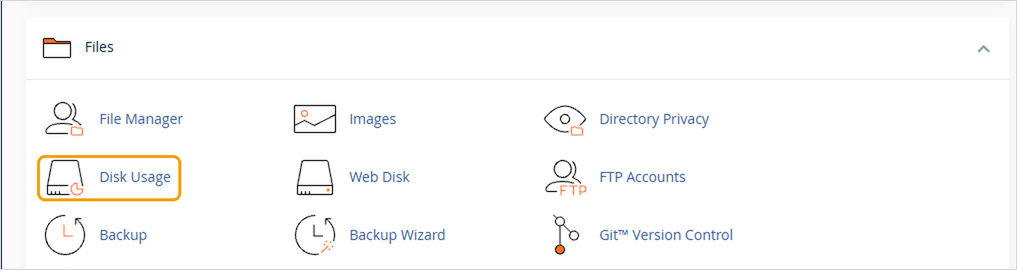
- You'll see a list of folders with the size of each. Click a folder to see what's inside it. Email is stored in the mail folder and your website in public_html.
Freeing up space
- Email: this is often the biggest user. Empty the Deleted Items and Spam folders, and delete old emails with large attachments. See How to log in to webmail.
- Old backups: backup files saved on your hosting take up a lot of room. Download them to your computer and then delete them from the server.
- Images: resize photos before uploading them, as images straight from a phone or camera are much bigger than a website needs.
- WordPress: delete plugins and themes you no longer use, and clear any cache plugin.
Good to know
- If you're regularly close to your limit, it may be time for a bigger plan. See How to upgrade or downgrade your hosting plan.
- Only delete files you're sure about. If you're not sure what something is, open a ticket and ask us first.


