
If other people need to help manage your Barruko account, such as a colleague or your accounts team, you can give them access without sharing your own login. There are two options, depending on what they need.
- Users get their own login to your client area, with the permissions you choose. Use this for people who need to log in, for example to pay invoices or raise tickets.
- Contacts don't log in. They just receive the emails you choose, such as invoices or support replies. Use this for someone like a bookkeeper who only needs copies of invoices.
Inviting a user
- Log in to your client area.
- Click your name in the top right and choose User Management.
- Click Invite New User.
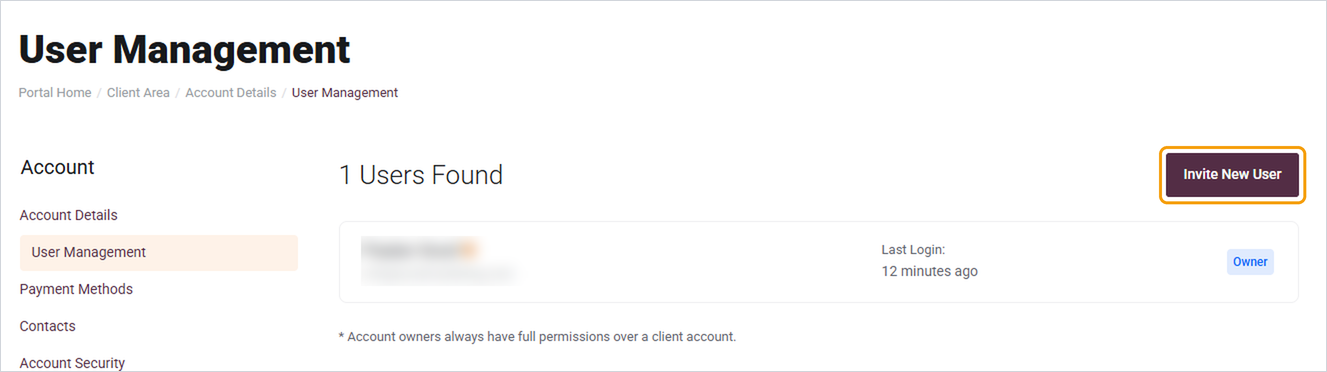
- Enter their email address and choose their permissions. Only give them access to what they need.
- Send the invite. They'll get an email asking them to accept and set up their own login.
Adding a contact
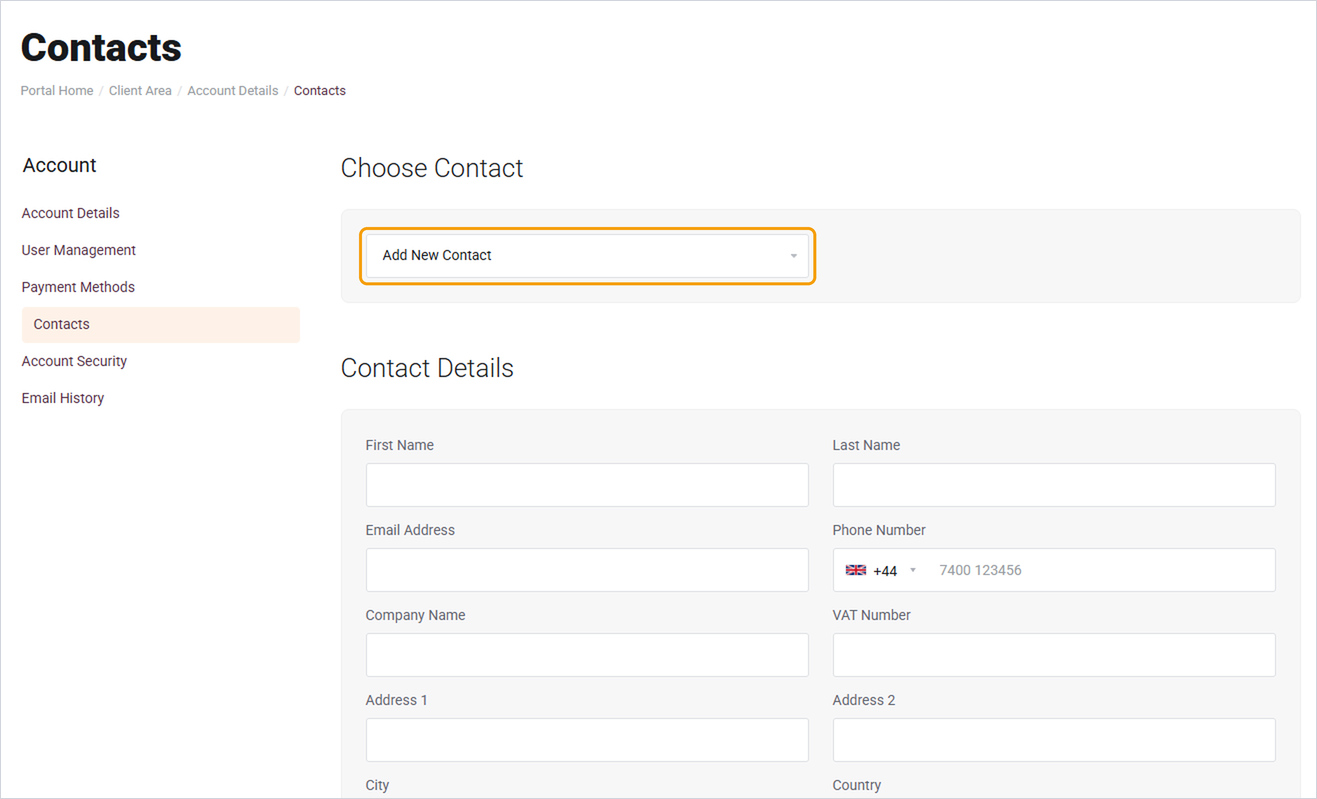
- Click your name in the top right and choose Contacts.
- Make sure Add New Contact is selected in the dropdown.
- Fill in their details and tick the types of email they should receive.
- Click Save Changes.
Good to know
- Never share your own login. If someone leaves, you can remove their user access without changing your password.
- To remove a user, go back to User Management and remove them from the list. To remove a contact, choose them from the dropdown on the Contacts page and delete them.
- The account owner always has full access and can't be removed. If the owner needs to change, open a ticket.


