
You have two main passwords with Barruko: one for your client area, and one for your hosting (cPanel). They're separate, so changing one doesn't change the other.
Changing your client area password
- Log in to your client area.
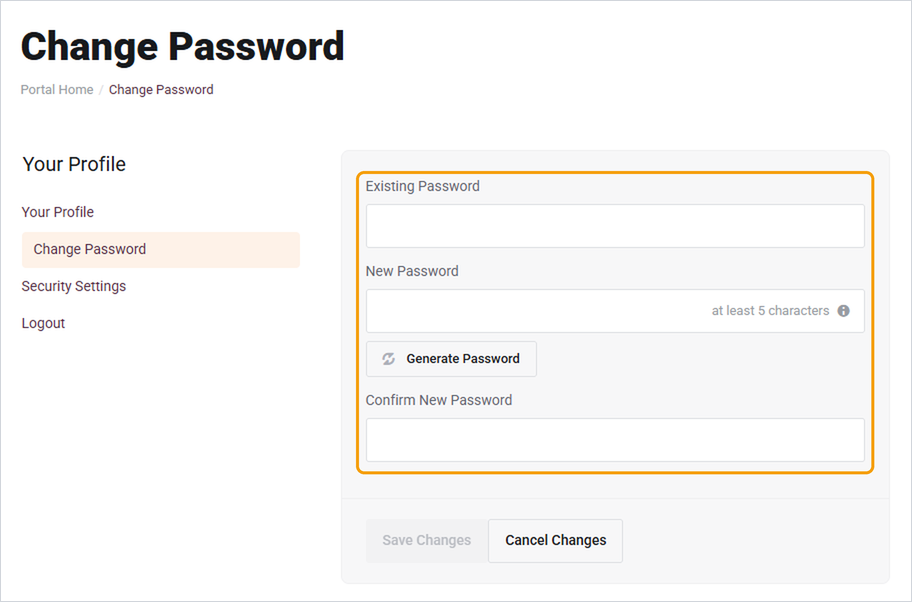
- Click your name in the top right and choose Change Password.
- Enter your current password, then your new password twice. You can click Generate Password to create a strong one.
- Click Save Changes.
If you've forgotten your current password, see How to reset a forgotten password instead.
Changing your cPanel password
- Log in to your client area and go to My Services.
- Click your hosting service.
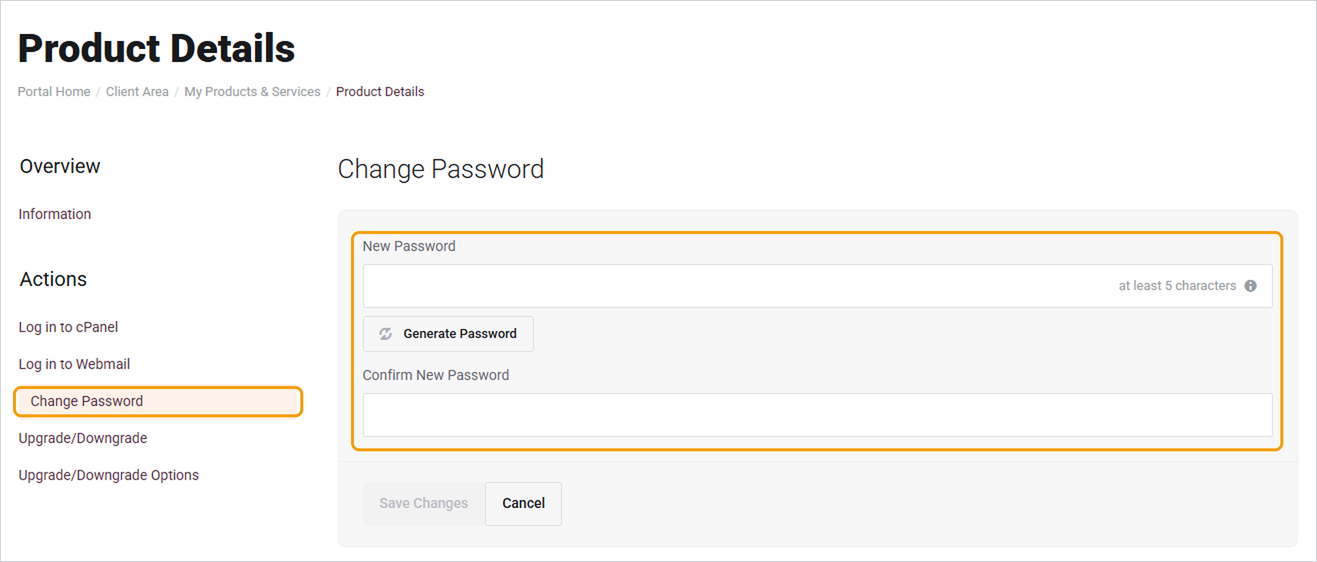
- Click Change Password under Actions on the left.
- Enter your new password twice, or click Generate Password.
- Click Save Changes.
Good to know
- Your cPanel password is also used for FTP, SFTP and SSH if you connect with your main cPanel username. Update any apps that use it.
- Changing your cPanel password doesn't change your email or WordPress passwords. To change an email password, see How to change your email password. WordPress passwords are changed inside WordPress itself.
- Use a password you don't use anywhere else. A password manager makes this easy.


