
An SSL certificate lets your website load over https. Visitors see a padlock in their browser, and anything they send through your site, such as a contact form, is kept private. All of our hosting plans include free SSL certificates, which are issued and renewed automatically through AutoSSL, so in most cases there's nothing to install.
Checking your certificate
- Log in to cPanel. See How to log in to cPanel if you're not sure how.
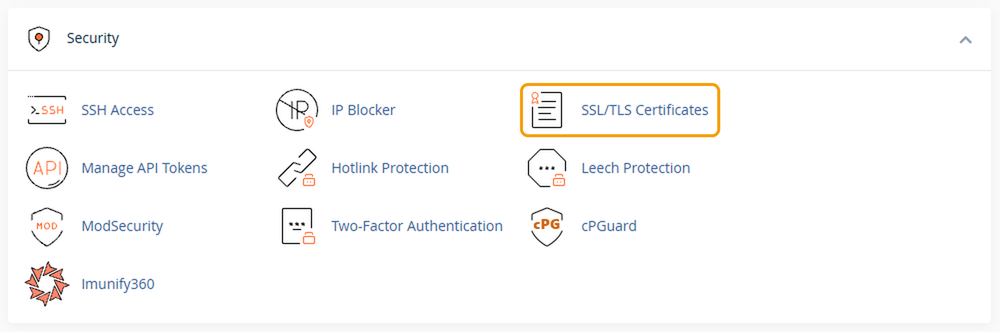
- Under Security, click SSL/TLS Certificates.
- Open the Status tab if it isn't already selected. You'll see a list of your domains. A green padlock means the domain has a valid certificate, which will renew automatically. A red icon means it isn't covered.
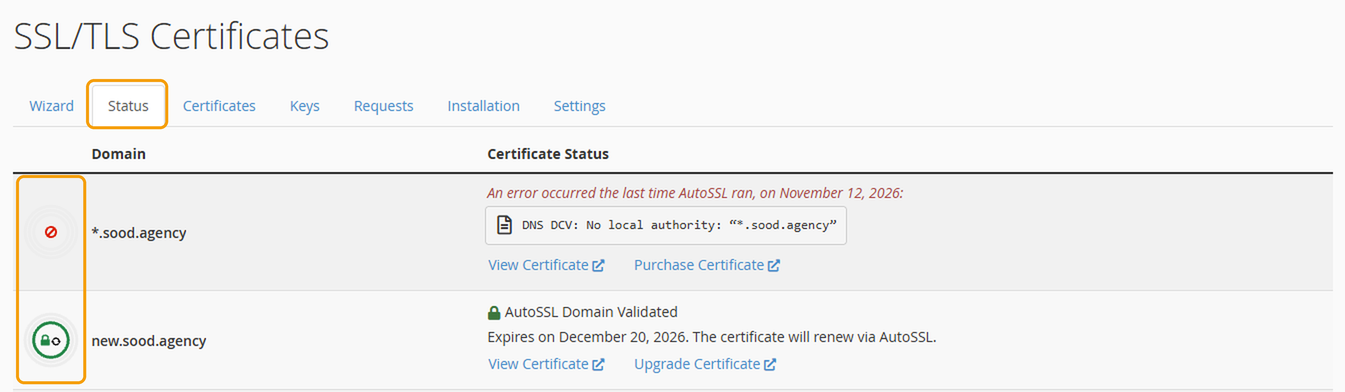
AutoSSL checks your domains regularly and adds certificates by itself, so you don't need to do anything to request one. It can only issue a certificate when the domain points to our servers. If you've just registered the domain or changed its nameservers, allow up to 24 hours. If the domain still isn't covered after that, get in touch and we'll look into it.
Some entries in the list, such as subdomains you don't use, may show a red icon. That's fine, as long as the addresses your visitors use have a green padlock. You may also see an option to purchase certificates. You don't need one for a standard website, as AutoSSL already covers it.
Making your site always use https
Once the certificate is active, you can send every visitor to the secure version of your site automatically.
- In cPanel, under Domains, click Domains.
- Find your domain in the list and switch on Force HTTPS Redirect.
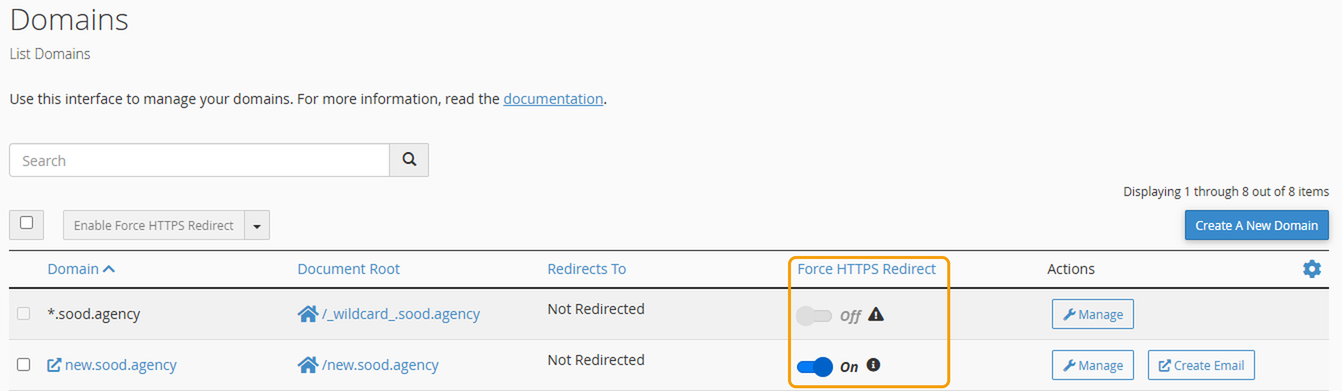
Anyone who visits the http version of your site will now be redirected to https. The switch only becomes available once the domain has a certificate.
If your site runs on WordPress, also go to Settings > General in your WordPress dashboard and check that the WordPress Address and Site Address both start with https://.
Still showing "Not secure"?
- The domain doesn't point to us yet. Check your nameservers are set correctly. See How to change your domain's nameservers.
- Some content still loads over http. If an image or script on the page uses an http link, the browser won't show the padlock. This usually comes from older links in your content or theme. Updating them to https fixes it.
- You use Cloudflare. Set the SSL/TLS mode in Cloudflare to Full (strict). The Flexible setting can cause the page to keep reloading when Force HTTPS Redirect is on. See How to add Cloudflare to your website.
- Your browser is showing an old copy. Try opening the site in a private or incognito window.
If none of these help, get in touch and we'll take a look.


