
Most email problems come down to a setting on your device, a password, a full mailbox, or messages being filtered as spam. Work through these checks in order. Most issues are found within the first few.
1. Try webmail
Log in to webmail with the email address and its password. See How to log in to webmail.
- Webmail works, but your phone or computer doesn't: the problem is the settings in your email app. Skip to step 4.
- Webmail doesn't work either: carry on to step 2.
2. Check the password
Each email account has its own password, separate from your client area and cPanel passwords. If you can't log in to webmail, reset it. See How to change your email password. Then update the password on every device that uses that email.
3. Check the mailbox isn't full
When a mailbox is full, new emails bounce. In cPanel, go to Email Accounts and check the storage bar next to the address.
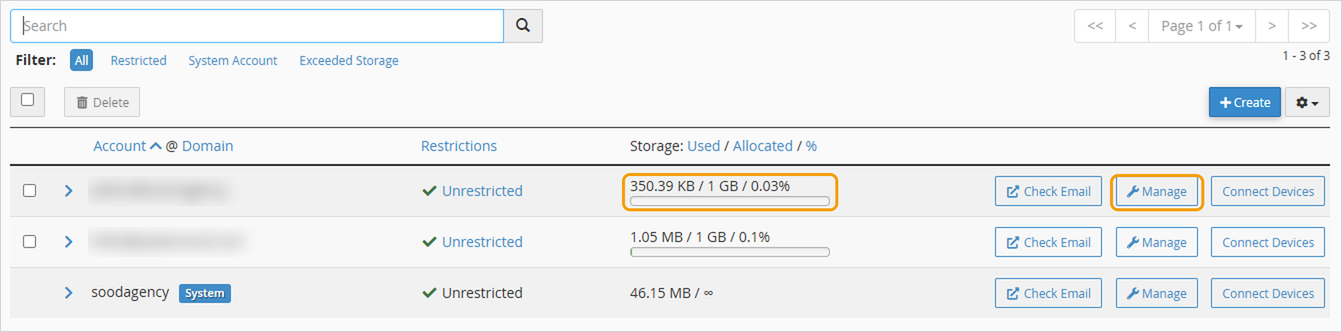
If it's nearly full, delete old emails with large attachments, then empty the Deleted Items and Spam folders, as emails there still use space.
4. Check your device's settings
The most common mistakes are using only part of the email address as the username, a typo in the server name, or the wrong port. Check them against How to set up your email on a phone or computer.
5. Can't send, or can't receive?
- Can't send: usually the outgoing server settings. Check the outgoing server, port 465 with SSL/TLS, and that sign-in is turned on.
- Can't receive: usually the incoming server settings or a full mailbox.
6. Check spam folders
- Missing emails: check your Spam or Junk folder in webmail, and mark anything you want as "Not spam".
- Your emails land in other people's spam: this is usually a domain setting rather than a problem with your mailbox. Open a ticket and we'll check it for you.
7. Security or certificate warnings
If your email app warns that the connection isn't secure, first check the server name matches the one shown in cPanel under Connect Devices. If it does, the certificate may need renewing:
- In cPanel, go to Security and click SSL/TLS Status.
- Tick any addresses that aren't covered, such as those starting with mail.
- Click Run AutoSSL. It can take a few minutes to finish.
Good to know
- If one address works and another doesn't, the problem is with that one mailbox, not your whole domain.
- Sending a large number of emails at once, such as a newsletter, can be temporarily blocked. Use an email marketing service for bulk emails.
- If you've recently changed your password, your nameservers, or moved your email to another provider such as Google or Microsoft, mention it when you contact us.
Still not working?
Open a ticket with the email address, whether you can send and/or receive, the device and app you use, any error message (a screenshot helps), when it started, and whether webmail works.


