
You can read and send your Barruko email on your phone, tablet or computer using its built-in email app. The settings are the same on every device, they're just entered in different places.
The settings you'll need
- Log in to cPanel and click Email Accounts under Email.
- Click Connect Devices next to the email address you want to set up.
- Use the details in the Secure SSL/TLS Settings (Recommended) box.
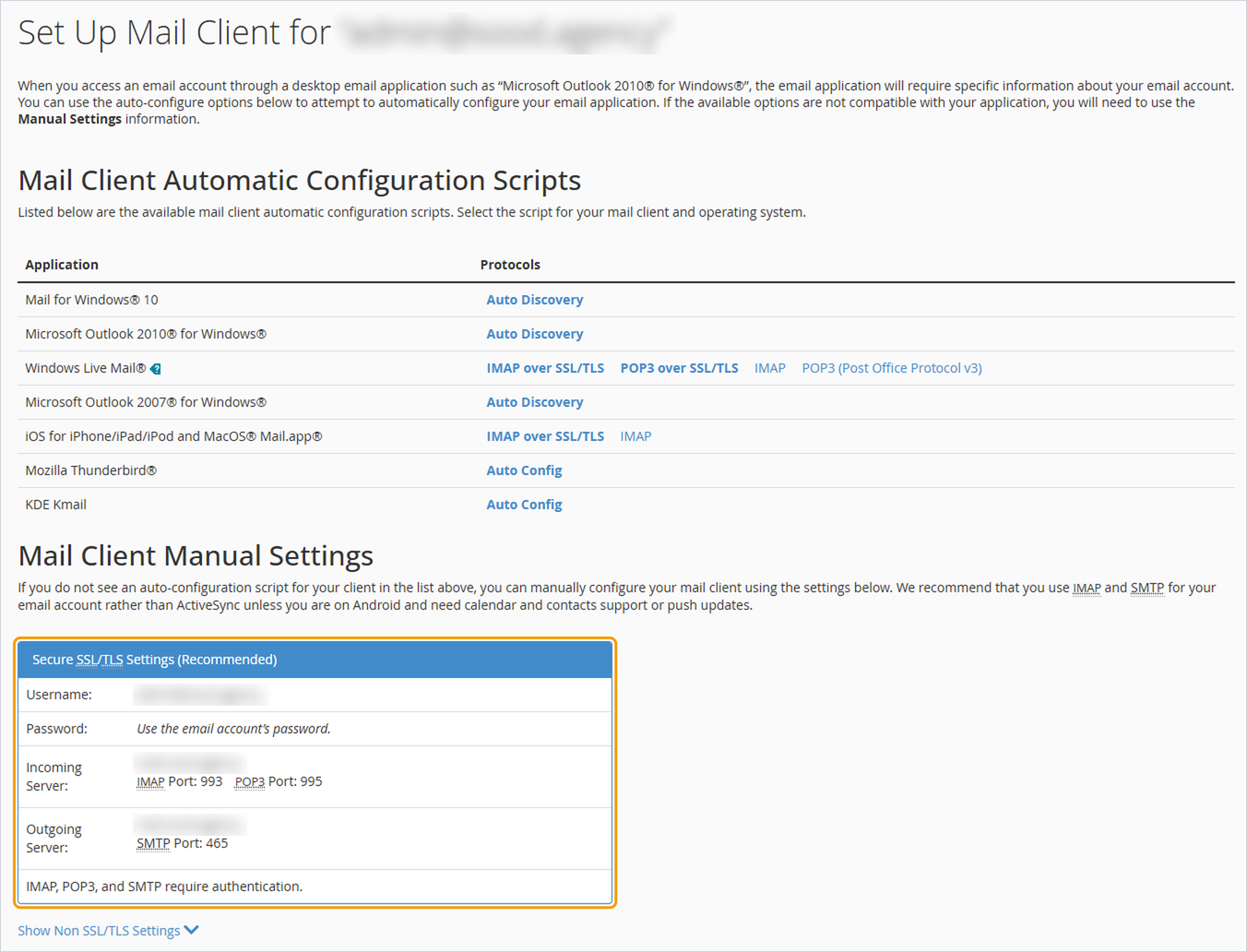
- Username: your full email address
- Password: your email password, not your client area or cPanel password
- Incoming server: as shown in the box, using IMAP, port 993, SSL/TLS
- Outgoing server: as shown in the box, port 465, SSL/TLS, with sign-in required
Copy the server name exactly as it's shown, rather than typing it from memory. Always choose IMAP rather than POP3, so your emails stay in sync across all your devices.
iPhone or iPad
- Open Settings and go to Mail, then Mail Accounts (on older versions, Passwords & Accounts).
- Tap Add Account, then Other, then Add Mail Account.
- Enter your name, email address, password and a description, then tap Next.
- Choose IMAP. Under both Incoming and Outgoing Mail Server, enter the server name, your full email address and your password.
- Tap Next, wait for the settings to be checked, then tap Save.
Android (Gmail app)
- Open the Gmail app, tap your profile picture and choose Add another account, then Other.
- Enter your email address and choose Personal (IMAP).
- Enter your password, then the incoming server details (port 993, SSL/TLS).
- Enter the outgoing server details (port 465, SSL/TLS, sign-in required) and finish the setup.
Other apps such as Samsung Email use different menu names, but the same details.
Outlook (Windows or Mac)
- Add a new account and enter your email address.
- Choose to set it up manually, then choose IMAP.
- Enter the incoming server (port 993, SSL/TLS) and outgoing server (port 465, SSL/TLS).
- Enter your email password and connect.
Apple Mail on Mac
- Go to System Settings → Internet Accounts (or Mail → Add Account) and choose Other Mail Account.
- Enter your name, email address and password and click Sign In.
- When asked, choose IMAP and enter the server name for both incoming and outgoing mail.
Good to know
- The username is always the full email address, not just the part before the @.
- If your device says it can't connect, check the password by logging in to webmail. If webmail works, the problem is usually a typo in the server name.
- If you get a certificate warning, make sure the server name matches the Connect Devices page exactly.
Need help?
Open a ticket with the email address, the device and app you're using, any error message (a screenshot helps), and whether webmail works for that address.


